Showing posts with label jquery mobile. Show all posts

16 April, 2012

Dynamic page update in jQuery Mobile using JSON

While creating your jQuery mobile application, you may want to show various records/data on the page. The number of records may be large and may span upto 100s. In such situations it is not at all logical to create 100 static pages using HTML5 divs or sections. But the most intelligent approach here is to dynamically update the content of a single page and show all records on that page only. I will show you how to achieve this in jQuery mobile. See the live demo here.
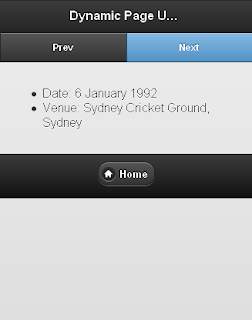

Here is the approach that I followed:
  1. Create a JSON file to store the data.
  2. Update the page content each time a record is requested.
 Live Demo Download Script

1. First of all let us create the basic layout of our HTML5 page

<!DOCTYPE html> 
<html>
<head>
<title>Dynamic page update</title>
<meta name="viewport" content="width=device-width, initial-scale=1">
<link rel="stylesheet" href="lib/jquery.mobile-1.0.1.min.css" />
<script src="lib/jquery-1.6.4.min.js"></script>
<script src="lib/jquery.mobile-1.0.1.min.js"></script>
<script src="lib/page_update.js"></script>
</head>
<body>

<!-- The main page -->
<section data-role="page" id="main">

<!-- The header -->
<div data-role="header">
<h1>Dynamic Page Update</h1>

<!-- The navigation bar -->
<nav data-role="navbar">
<ul>
<li><a href="#" id="prev">Prev</a></li>
<li><a href="#" id="next">Next</a></li>
</ul>
</nav>
</div>

<!-- The content area -->
<div data-role="content" id="main-content">
</div>


<!-- The footer -->
<div data-role="footer">
<h4>
<a href="#main" data-role="button" data-icon="home">Home</a>
</h4>
</div>
</section>

</body>
</html>
The Page Layout

2. Next we will create the JSON file to store our data

[
{
"events":
[
{
"venue":"Old Trafford, Manchester",
"date":"14 August 1990"
},
{
"venue":"Sydney Cricket Ground, Sydney",
"date":"6 January 1992"
},
{
"venue":"WACA Ground, Perth",
"date":"3 February 1992"
},
{
"venue":"Sher-e-Bangla National Stadium (3), Mirpur",
"date":"16 March 2012"
}
]
}
]

3. Declaring various global variables

//Initialize global variables
var cur_record = 1;
var UPPER_RECORD_LIMIT = 4;
var LOWER_RECORD_LIMIT = 1;
var HASH = '#';
var TRANSITION_TYPE = 'slide';
var PAGE_ID = 'main';
var PAGE_CONTENT_ID = 'main-content';
var NEXT_BTN_ID = 'next';
var PREV_BTN_ID = 'prev';

var ALL_RECORDS = '';
var EVENTS = '';

4. Now in our JavaScript file we will fetch the data from our JSON file using AJAX.

We will store the data in some global variable.
//Get the records from JSON file
jQuery.getJSON("lib/page_data.json", function(data){
setRecords(data);
});

//Store the records in global variables
function setRecords(data) {
ALL_RECORDS = data;
EVENTS = ALL_RECORDS[0].events;
UPPER_RECORD_LIMIT = EVENTS.length;
updateRecordsData();
}

5. Now we will update the content of the page upon document.ready event of jQuery.

//Update the page content
function updateRecordsData(){
var this_page = jQuery(HASH+PAGE_ID).find(HASH + PAGE_CONTENT_ID);
var venue = EVENTS[cur_record-1].venue;
var date = EVENTS[cur_record-1].date;

var htm = '';
htm += '<ul data-role="listview">';
htm += ' <li>Date: ' + date + '</li>';
htm += ' <li>Venue: ' + venue + '</li>';
htm += '</ul>';
jQuery( HASH + PAGE_ID ).find( HASH + PAGE_CONTENT_ID ).html(htm);
}

6. Show next and previous records

  //Go to next record
function gotoNextRecord() {
cur_record++;
if(cur_record > UPPER_RECORD_LIMIT) {
cur_record = LOWER_RECORD_LIMIT;
}
updateRecordsData();
}

//Go to previous record
function gotoPrevRecord() {
cur_record--;
if(cur_record < LOWER_RECORD_LIMIT) {
cur_record = UPPER_RECORD_LIMIT;
}
updateRecordsData();
}

7. Binding the click and swipe events

jQuery mobile provides pre-built touch events for swipe. You can bind these events like this:
//Bind events with next/previous buttons
jQuery(HASH + NEXT_BTN_ID).bind('click', gotoNextRecord);

jQuery(HASH + PREV_BTN_ID).bind('click', gotoPrevRecord);

jQuery(HASH+PAGE_ID).bind('swipeleft', gotoNextRecord);

jQuery(HASH+PAGE_ID).bind('swiperight', gotoPrevRecord);

8. The final code

jQuery(document).ready(function() {

//Initialize global variables
var cur_record = 1;
var UPPER_RECORD_LIMIT = 4;
var LOWER_RECORD_LIMIT = 1;
var HASH = '#';
var TRANSITION_TYPE = 'slide';
var PAGE_ID = 'main';
var PAGE_CONTENT_ID = 'main-content';
var NEXT_BTN_ID = 'next';
var PREV_BTN_ID = 'prev';

var ALL_RECORDS = '';
var EVENTS = '';

//Get the records from JSON file
jQuery.getJSON("lib/page_data.json", function(data){
setRecords(data);
});

//Store the records in global variables
function setRecords(data) {
ALL_RECORDS = data;
EVENTS = ALL_RECORDS[0].events;
UPPER_RECORD_LIMIT = EVENTS.length;
updateRecordsData();
}

//Update the page content
function updateRecordsData(){
var this_page = jQuery(HASH+PAGE_ID).find(HASH + PAGE_CONTENT_ID);
var venue = EVENTS[cur_record-1].venue;
var date = EVENTS[cur_record-1].date;

var htm = '';
htm += '<ul data-role="listview">';
htm += ' <li>Date: ' + date + '</li>';
htm += ' <li>Venue: ' + venue + '</li>';
htm += '</ul>';
jQuery( HASH + PAGE_ID ).find( HASH + PAGE_CONTENT_ID ).html(htm);
}

//Go to next record
function gotoNextRecord() {
cur_record++;
if(cur_record > UPPER_RECORD_LIMIT) {
cur_record = LOWER_RECORD_LIMIT;
}
updateRecordsData();
}

//Go to previous record
function gotoPrevRecord() {
cur_record--;
if(cur_record < LOWER_RECORD_LIMIT) {
cur_record = UPPER_RECORD_LIMIT;
}
updateRecordsData();
}

//Bind events with next/previous buttons
jQuery(HASH + NEXT_BTN_ID).bind('click', gotoNextRecord);

jQuery(HASH + PREV_BTN_ID).bind('click', gotoPrevRecord);

jQuery(HASH+PAGE_ID).bind('swipeleft', gotoNextRecord);

jQuery(HASH+PAGE_ID).bind('swiperight', gotoPrevRecord);

});

Dynamic page update in jQuery Mobile using JSON

While creating your jQuery mobile application, you may want to show various records/data on the page. The number of records may be large and may span upto 100s. In such situations it is not at all logical to create 100 static pages using HTML5 divs or sections. But the most intelligent approach here is to dynamically update the content of a single page and show all records on that page only. I will show you how to achieve this in jQuery mobile. See the live demo here.


Here is the approach that I followed:
  1. Create a JSON file to store the data.
  2. Update the page content each time a record is requested.
 Live Demo Download Script

1. First of all let us create the basic layout of our HTML5 page

<!DOCTYPE html> 
<html>
<head>
<title>Dynamic page update</title>
<meta name="viewport" content="width=device-width, initial-scale=1">
<link rel="stylesheet" href="lib/jquery.mobile-1.0.1.min.css" />
<script src="lib/jquery-1.6.4.min.js"></script>
<script src="lib/jquery.mobile-1.0.1.min.js"></script>
<script src="lib/page_update.js"></script>
</head>
<body>

<!-- The main page -->
<section data-role="page" id="main">

<!-- The header -->
<div data-role="header">
<h1>Dynamic Page Update</h1>

<!-- The navigation bar -->
<nav data-role="navbar">
<ul>
<li><a href="#" id="prev">Prev</a></li>
<li><a href="#" id="next">Next</a></li>
</ul>
</nav>
</div>

<!-- The content area -->
<div data-role="content" id="main-content">
</div>


<!-- The footer -->
<div data-role="footer">
<h4>
<a href="#main" data-role="button" data-icon="home">Home</a>
</h4>
</div>
</section>

</body>
</html>
The Page Layout

2. Next we will create the JSON file to store our data

[
{
"events":
[
{
"venue":"Old Trafford, Manchester",
"date":"14 August 1990"
},
{
"venue":"Sydney Cricket Ground, Sydney",
"date":"6 January 1992"
},
{
"venue":"WACA Ground, Perth",
"date":"3 February 1992"
},
{
"venue":"Sher-e-Bangla National Stadium (3), Mirpur",
"date":"16 March 2012"
}
]
}
]

3. Declaring various global variables

//Initialize global variables
var cur_record = 1;
var UPPER_RECORD_LIMIT = 4;
var LOWER_RECORD_LIMIT = 1;
var HASH = '#';
var TRANSITION_TYPE = 'slide';
var PAGE_ID = 'main';
var PAGE_CONTENT_ID = 'main-content';
var NEXT_BTN_ID = 'next';
var PREV_BTN_ID = 'prev';

var ALL_RECORDS = '';
var EVENTS = '';

4. Now in our JavaScript file we will fetch the data from our JSON file using AJAX.

We will store the data in some global variable.
//Get the records from JSON file
jQuery.getJSON("lib/page_data.json", function(data){
setRecords(data);
});

//Store the records in global variables
function setRecords(data) {
ALL_RECORDS = data;
EVENTS = ALL_RECORDS[0].events;
UPPER_RECORD_LIMIT = EVENTS.length;
updateRecordsData();
}

5. Now we will update the content of the page upon document.ready event of jQuery.

//Update the page content
function updateRecordsData(){
var this_page = jQuery(HASH+PAGE_ID).find(HASH + PAGE_CONTENT_ID);
var venue = EVENTS[cur_record-1].venue;
var date = EVENTS[cur_record-1].date;

var htm = '';
htm += '<ul data-role="listview">';
htm += ' <li>Date: ' + date + '</li>';
htm += ' <li>Venue: ' + venue + '</li>';
htm += '</ul>';
jQuery( HASH + PAGE_ID ).find( HASH + PAGE_CONTENT_ID ).html(htm);
}

6. Show next and previous records

  //Go to next record
function gotoNextRecord() {
cur_record++;
if(cur_record > UPPER_RECORD_LIMIT) {
cur_record = LOWER_RECORD_LIMIT;
}
updateRecordsData();
}

//Go to previous record
function gotoPrevRecord() {
cur_record--;
if(cur_record < LOWER_RECORD_LIMIT) {
cur_record = UPPER_RECORD_LIMIT;
}
updateRecordsData();
}

7. Binding the click and swipe events

jQuery mobile provides pre-built touch events for swipe. You can bind these events like this:
//Bind events with next/previous buttons
jQuery(HASH + NEXT_BTN_ID).bind('click', gotoNextRecord);

jQuery(HASH + PREV_BTN_ID).bind('click', gotoPrevRecord);

jQuery(HASH+PAGE_ID).bind('swipeleft', gotoNextRecord);

jQuery(HASH+PAGE_ID).bind('swiperight', gotoPrevRecord);

8. The final code

jQuery(document).ready(function() {

//Initialize global variables
var cur_record = 1;
var UPPER_RECORD_LIMIT = 4;
var LOWER_RECORD_LIMIT = 1;
var HASH = '#';
var TRANSITION_TYPE = 'slide';
var PAGE_ID = 'main';
var PAGE_CONTENT_ID = 'main-content';
var NEXT_BTN_ID = 'next';
var PREV_BTN_ID = 'prev';

var ALL_RECORDS = '';
var EVENTS = '';

//Get the records from JSON file
jQuery.getJSON("lib/page_data.json", function(data){
setRecords(data);
});

//Store the records in global variables
function setRecords(data) {
ALL_RECORDS = data;
EVENTS = ALL_RECORDS[0].events;
UPPER_RECORD_LIMIT = EVENTS.length;
updateRecordsData();
}

//Update the page content
function updateRecordsData(){
var this_page = jQuery(HASH+PAGE_ID).find(HASH + PAGE_CONTENT_ID);
var venue = EVENTS[cur_record-1].venue;
var date = EVENTS[cur_record-1].date;

var htm = '';
htm += '<ul data-role="listview">';
htm += ' <li>Date: ' + date + '</li>';
htm += ' <li>Venue: ' + venue + '</li>';
htm += '</ul>';
jQuery( HASH + PAGE_ID ).find( HASH + PAGE_CONTENT_ID ).html(htm);
}

//Go to next record
function gotoNextRecord() {
cur_record++;
if(cur_record > UPPER_RECORD_LIMIT) {
cur_record = LOWER_RECORD_LIMIT;
}
updateRecordsData();
}

//Go to previous record
function gotoPrevRecord() {
cur_record--;
if(cur_record < LOWER_RECORD_LIMIT) {
cur_record = UPPER_RECORD_LIMIT;
}
updateRecordsData();
}

//Bind events with next/previous buttons
jQuery(HASH + NEXT_BTN_ID).bind('click', gotoNextRecord);

jQuery(HASH + PREV_BTN_ID).bind('click', gotoPrevRecord);

jQuery(HASH+PAGE_ID).bind('swipeleft', gotoNextRecord);

jQuery(HASH+PAGE_ID).bind('swiperight', gotoPrevRecord);

});

09 April, 2012

jQuery Mobile tutorial for Beginners

jQuery Mobile is a set of jQuery plug-ins and widgets that aim to provide a cross-platform API for creating mobile web applications. In terms of code implementation, jQuery Mobile is very similar to jQuery UI, but while jQuery UI is focused on desktop applications, jQuery Mobile is built with mobile devices in mind. jQuery Mobile uses HTML 5 and CSS 3 features to enhance basic HTML markup to create a consistent mobile experience across supported platforms. See live demo here.

Live Demo

Create Your First jQuery Mobile Application

<!DOCTYPE html>
<html>
<head>
<title>jQuery Mobile Application</title>
<link rel="stylesheet" href="http://code.jquery.com/mobile/1.0a4.1/
jquery.mobile-1.0a4.1.min.css" />
<script src="http://code.jquery.com/jquery-1.5.2.min.js"></script>
<script src="http://code.jquery.com/mobile/1.0a4.1/jquery.mobile-1.0a4.1.min.js">
</script>
</head>
<body>

<!-- The page starts -->
<section id="page1" data-role="page">
<!-- The header -->
<header data-role="header"><h1>jQuery Mobile</h1></header>
<!-- The header -->

<!-- The body -->
<div class="content" data-role="content">
<p>Welcome to jQuery Mobile!</p>
</div>
<!-- The body -->

<!-- The footer -->
<footer data-role="footer"><h1>WebSpeaks.in</h1></footer>
<!-- The footer -->

</section>
</body>
</html>
jQuery Mobile doesn’t need specific markup, but it does need us to indicate the roles of the content areas somehow. To do this, jQuery Mobile uses a custom data- attribute: data-role. Valid data-role values include page, header, content, and footer. Adding a new page to the application is as simple as that. Just add a new HTML 5 section with data-role="page" and it is done. See the following example.
<!DOCTYPE html>
<html>
<head>
<title>jQuery Mobile Application</title>
<link rel="stylesheet" href="http://code.jquery.com/mobile/1.0a4.1/
jquery.mobile-1.0a4.1.min.css" />
<script src="http://code.jquery.com/jquery-1.5.2.min.js"></script>
<script src="http://code.jquery.com/mobile/1.0a4.1/jquery.mobile-1.0a4.1.min.js">
</script>
</head>
<body>

<section id="page1" data-role="page">
<header data-role="header"><h1>jQuery Mobile</h1></header>
<div class="content" data-role="content">
<p>Welcome to jQuery Mobile!</p>
<p><a href="#page2">Go to the second page!</a></p>
</div>
<footer data-role="footer"><h1>WebSpeaks.in</h1></footer>
</section>

<section id="page2" data-role="page">
<header data-role="header"><h1>jQuery Mobile</h1></header>
<div class="content" data-role="content">
<p>Second page!</p>
<p><a href="#page1">Go to the first page!</a></p>
</div>
<footer data-role="footer"><h1>WebSpeaks.in</h1></footer>
</section>

</body>
</html>


jQuery mobile will maintain the history of the navigation for you. jQuery Mobile will automatically handle the page transition animation, and will automatically provide a back button in the header. There you have it, your first jQuery Mobile application. It doesn’t do much, but it should give you some insight into the simplicity of the framework.


© 2013 Jquery Giants. All rights resevered. Designed by Templateism

Back To Top